
Getting started
What ClipMap does
ClipMap opens Pro Tools session files (.ptx, and the older .pts and .ptf) directly, without Pro Tools. It shows the session’s tracks and clips on a timeline, plays back the audio and video, and sends clips into a running Pro Tools, by dragging them or with Spot to Pro Tools.
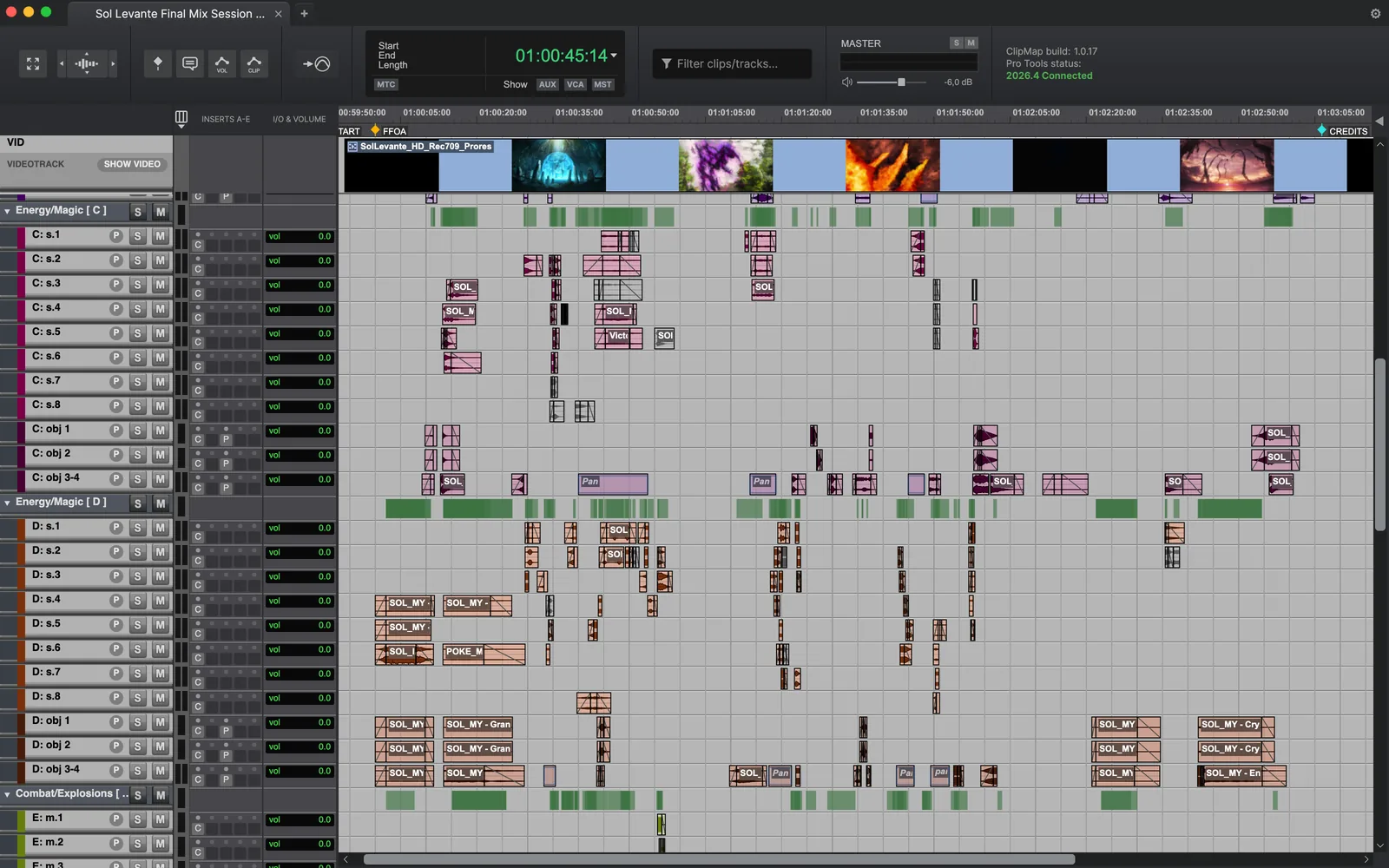
ClipMap only reads your sessions and media. It never writes anything into your session or media folders.
System requirements
| Minimum | |
|---|---|
| Windows | Windows 10 or later, 64-bit |
| Mac | macOS 12 or later, Apple Silicon (M1 or newer) or Intel |
| Pro Tools | Not needed to open, browse and play sessions. Spot to Pro Tools needs Pro Tools 2023.9 or later on the same computer; 2025.6 or later is recommended. |
| Internet | Needed each time ClipMap starts, to check your license. If the connection drops while ClipMap is open, it keeps working. |
Download and install
Download ClipMap from sparks.audio/download. There are versions for Windows, Mac with Apple Silicon and Mac with Intel. No account or key is needed to download.
The same download is used for every version: your license decides whether it runs as ClipMap or ClipMap Pro.
First launch: trial or license key
The first time ClipMap starts on a computer, it shows Welcome to ClipMap with two choices:
- Get Started starts the 14-day trial of ClipMap Pro. Enter your email address and click Send confirmation email, then click the link in the email. ClipMap starts the trial and registers the computer, which can take up to a minute. Click Open ClipMap. If the link has expired, enter your email again to get a new one.
- Already have a license? Paste the license key from your license email and click Continue.
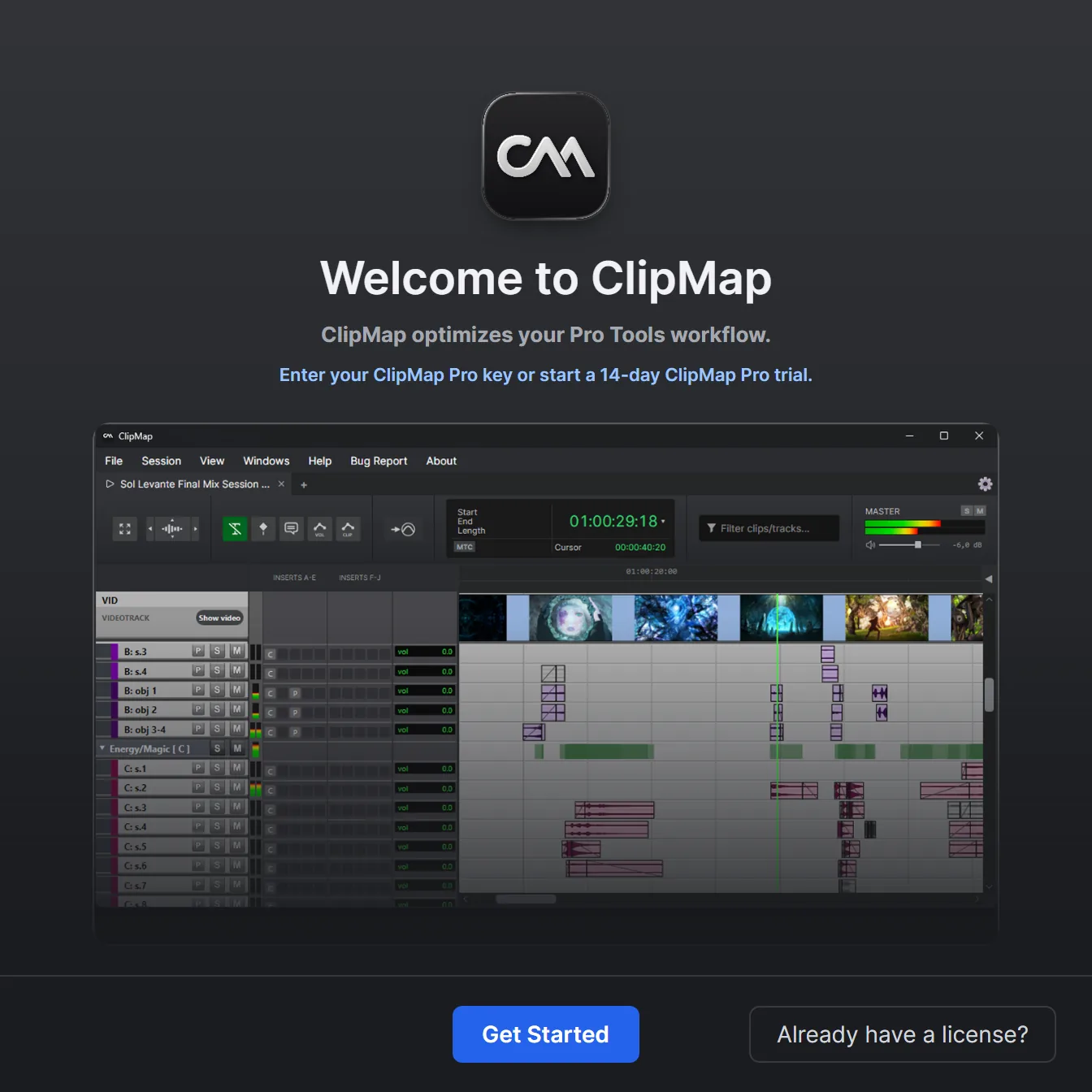
There is one trial per person and per computer. Your license key is in your purchase email and in your account at account.sparks.audio.
ClipMap and ClipMap Pro
ClipMap comes in two versions. Both are one-time purchases for Windows and Mac. See prices and buy at sparks.audio/buy.
| ClipMap | ClipMap Pro | |
|---|---|---|
| Open, browse and play Pro Tools sessions | Yes | Yes |
| Search and filter clips and tracks, relink missing media | Yes | Yes |
| Drag a clip into Pro Tools, with its fades | One at a time | Several at once |
| Comments, Inserts and I/O & Volume columns | Yes | Yes |
| Several sessions open at once, workspaces | Yes | |
| Spot to Pro Tools, Advanced Spot, importing whole tracks | Yes | |
| Video player, video thumbnails, video sync (MTC and MMC) | Yes | |
| Transcript, automation and clip gain lines, memory locations on tracks | Yes | |
| Plugins in Session window, MIDI output | Yes | |
| Registered computers | 1 | 2, used one at a time |
The trial is ClipMap Pro with every feature for 14 days. When it ends, you can buy either version and keep the same key.
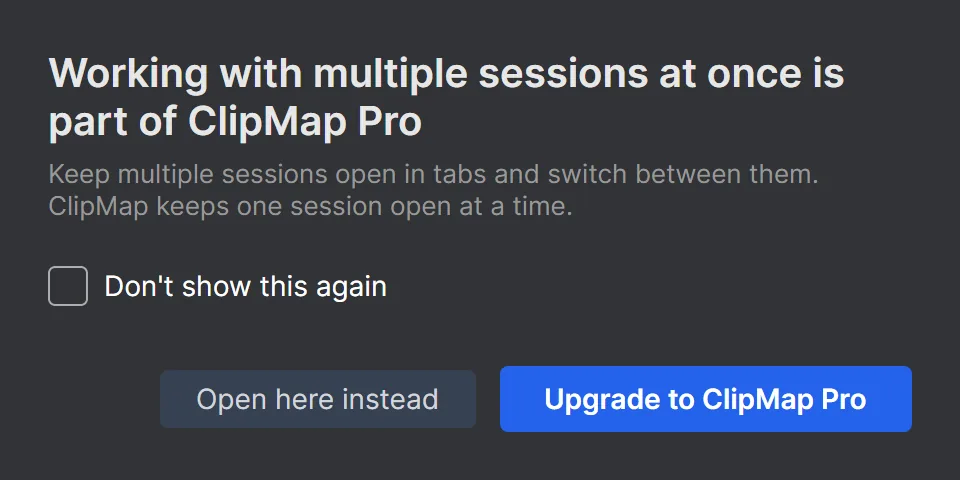
With a ClipMap license, Pro features stay visible but are marked (Pro) or · PRO. Using one shows a short explanation with an Upgrade to ClipMap Pro button.
Licensing
Computers and “one at a time”
A ClipMap Pro license lets one person use ClipMap on up to two computers they own or control, on one of them at a time. A ClipMap license is for one computer. Both work on Windows and Mac. Your account at account.sparks.audio shows each license’s computers. Some licenses bought before the launch allow more computers; the account shows each license’s own numbers.
To register a computer, enter your license key in ClipMap. If the license has a free place, the computer is registered.
If you start ClipMap Pro on your second computer while it is running on the first, ClipMap says In use on and the other computer’s name, and offers Use it here instead. Choose it and the license moves: ClipMap on the first computer stops, usually within seconds (it may first offer to save the open workspace).
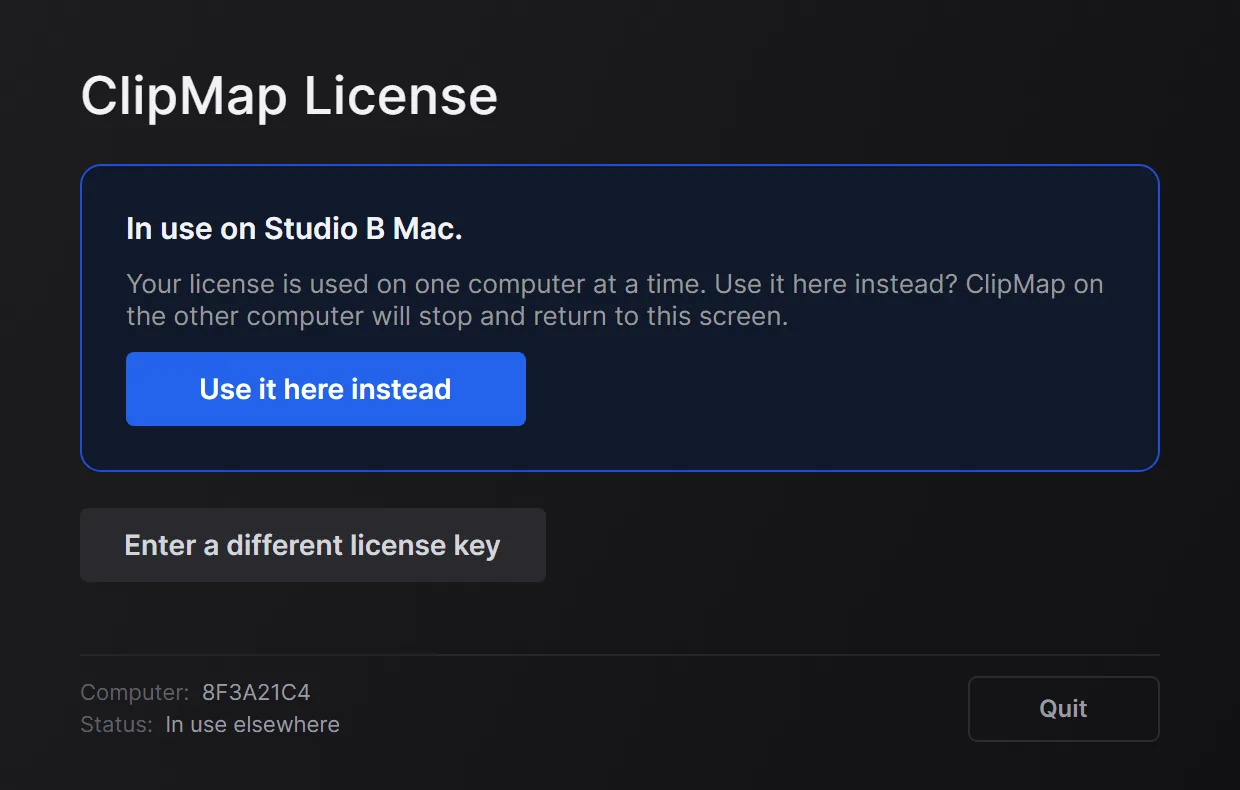
If ClipMap crashes or loses its connection, the computer is released after 5 minutes. Quitting ClipMap normally releases it right away.
Moving to a new computer
When every place on the license is taken, ClipMap says “All available computer registrations are already used for this license.” and lists the registered computers.
- Click Manage your computers (or sign in at account.sparks.audio).
- Click Remove next to a computer you no longer use.
- Back in ClipMap, enter your key and click Continue.
You can also remove a computer from ClipMap on that computer: About > License… on Windows or ClipMap > License… on a Mac, then Remove this computer….
After a computer is removed, the license can remove the next one 14 days later. Registering a computer in a free place is always possible. If a computer broke or you are stuck, contact support and we will help.
Managing the license on this computer
Open About > License… on Windows or ClipMap > License… on a Mac. The License window shows who the license belongs to and the end of the key, and has three buttons:
- Manage account opens your account: licenses, computers, receipts and downloads.
- Use a different key… moves this computer to another license in one step.
- Remove this computer… removes this computer from its license.
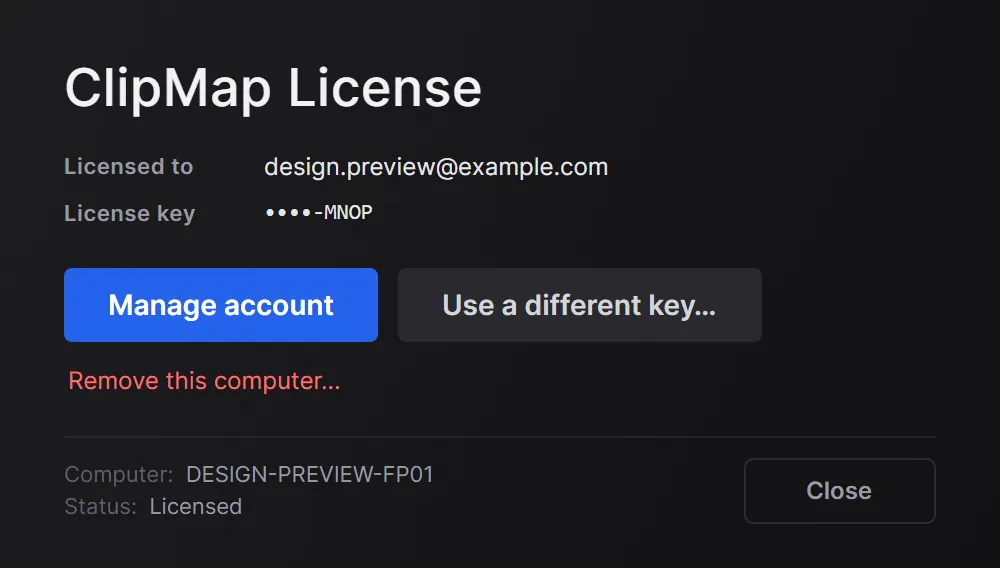
Switching keys and removing a computer both count as a removal on the old license, so it can’t remove another computer for 14 days. ClipMap tells you before you confirm.
Upgrading to ClipMap Pro
In ClipMap, click any feature marked Pro and choose Upgrade to ClipMap Pro. Starting from ClipMap gives you the upgrade price and upgrades the license you already have: the key stays the same and the license gets a second computer place. Restart ClipMap afterwards if it was open.
Start the upgrade from inside ClipMap. Buying ClipMap Pro on the website without it charges the full price.
Internet connection
ClipMap checks your license online every time it starts, so it needs an internet connection when you open it. If the connection drops while ClipMap is open, it keeps working. Facilities that need offline activation can ask about Enterprise.
Several licenses
Each purchase adds a license to your account, with its own key and its own computers, and a studio can give its licenses to different people. Buy another license in your account adds one. For several licenses at once, contact us.
Messages on the license screen
When ClipMap can’t use the license on a computer, it opens the license screen with a message explaining why.
| ClipMap says | What to do |
|---|---|
| In use on [computer] | Click Use it here instead. ClipMap on the other computer stops. |
| All available computer registrations are already used for this license. | Remove a computer you no longer use. See Moving to a new computer. |
| This computer isn’t registered on this license, or has been unregistered | Click Register this computer. It needs a free place on the license. |
| You removed this computer from its license. | Enter a key and click Continue. |
| Your ClipMap Pro trial has ended. | Click Buy ClipMap Pro, or buy at sparks.audio/buy with the same email. The trial turns into your license with the same key. Restart ClipMap. |
| A ClipMap Pro trial is not available for this email or computer. | This email or computer already had a trial. Enter a key, or buy at sparks.audio/buy. |
| Your license couldn’t be read. | Copy the key from your account and enter it again. |
| License has been suspended, or revoked | Contact support. |
| Your system clock looks incorrect. | Set the date, time and time zone automatically, then restart ClipMap. |
| ClipMap couldn’t check your license, or ClipMap needs the internet to check your license | Check your internet connection, then click Try again. See Network problems. |
| Too many license requests. | Wait a minute, then click Try again. |
| This ClipMap build has been retired, or You need to update to keep using ClipMap | Click Update and restart, or install the latest version from sparks.audio/download. |
Opening sessions
Open a session
Choose File > Open Pro Tools Session (PTX)… (Cmd+O on a Mac), click Open Session on the start screen, click the + after the last tab, or drag a session file onto the ClipMap window. ClipMap opens .ptx files and the older .pts and .ptf files. Some very old sessions can’t be read.
Double-clicking a session still opens Pro Tools. On a Mac you can also right-click a session in the Finder and choose Open With > ClipMap.
Opening the same session again is faster, because ClipMap keeps a cache of the sessions it has opened.
If a session can’t be opened, ClipMap offers Send to ClipMap support, which sends us the session file (no audio) so we can fix the problem.
Recent sessions
File > Open Recent lists your 10 most recent sessions. The start screen shows the same list.
Several sessions in tabs Pro
Open more sessions and each one gets its own tab. Click a tab to switch. To close one, use File > Close Session (Cmd+W on a Mac), the x on the tab, or right-click a tab for Close, Close Others and Close All.
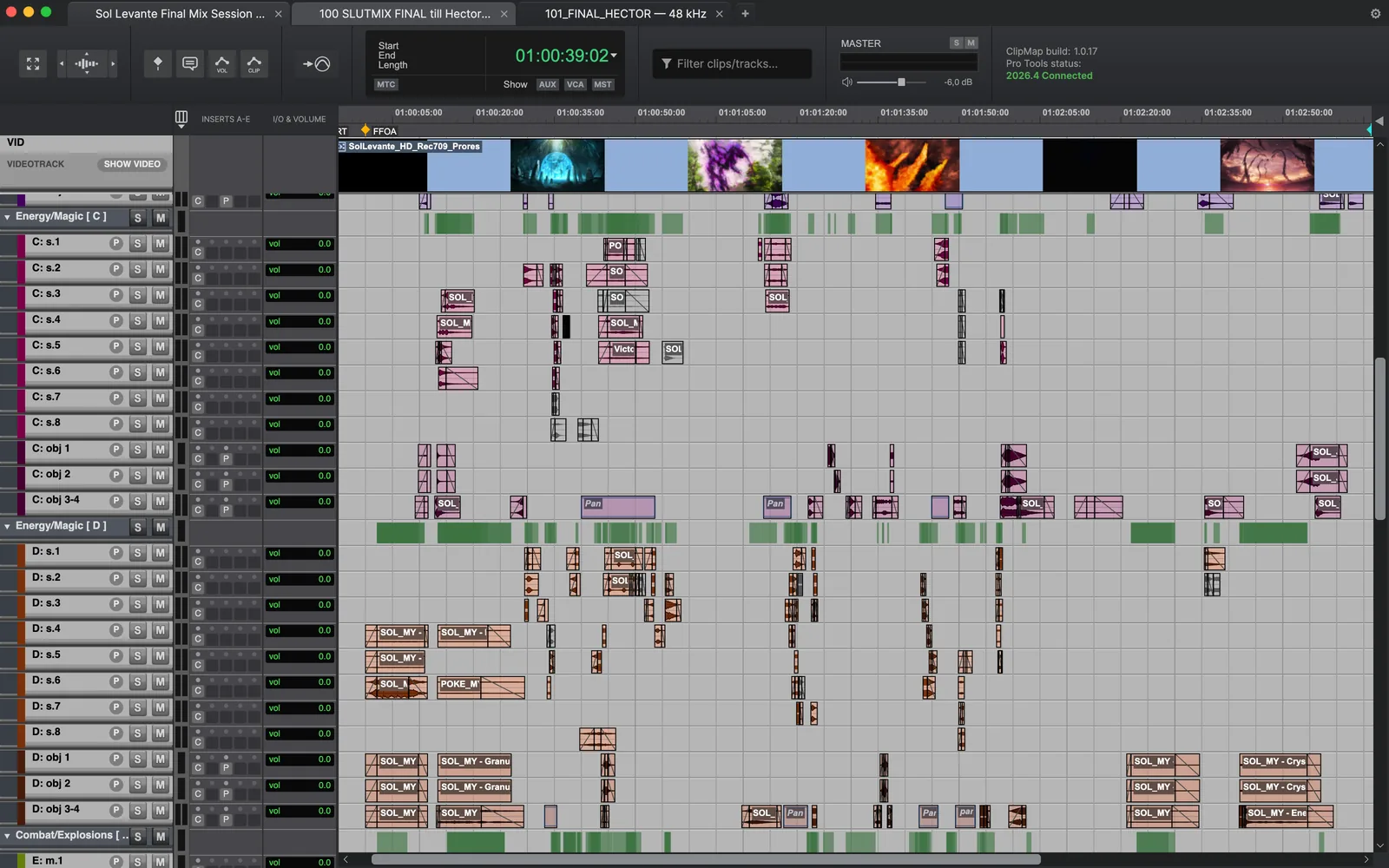
With a ClipMap license one session is open at a time. Opening another offers Open here instead, which replaces the open session.
Relink missing media
When some of a session’s audio or video can’t be found where the session expects it, for example because the files moved, the drive has another name or letter, or the session was made on another computer, the Relink Media window opens after the session has loaded. The session opens either way. Open the window at any time with File > Relink Files….
- Click Locate audio in folder and choose the folder that holds the audio. ClipMap searches its subfolders too, so you can pick a parent folder.
- Do the same with Locate video in folder if video is missing.
- Close the window.
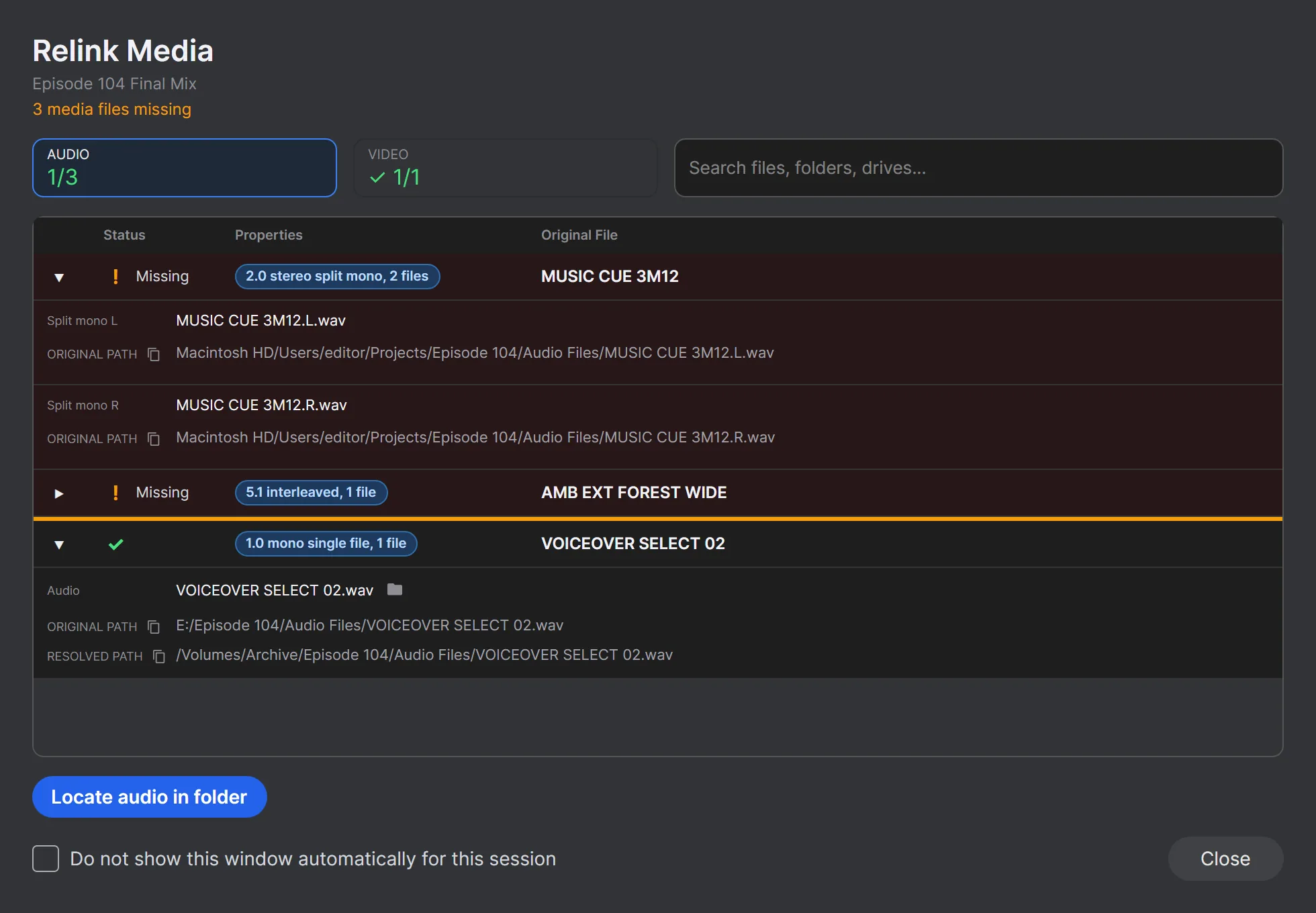
The AUDIO and VIDEO tabs show how many files are found, and missing files are listed first. ClipMap remembers where it found the files, so this session finds them by itself next time. Other sessions that use the same moved files need the same step once. Relinking never changes or moves your files.
Tick Do not show this window automatically for this session to stop the window from opening by itself.
Workspaces Pro
A workspace (.cmw file) remembers a set of open sessions and how each one looked on screen, so you can reopen them together.
- File > Save Workspace… saves the open sessions, which tab was in front, and each tab’s zoom, scroll position and view options.
- File > Open Workspace… closes the sessions you have open, then opens the ones in the workspace. You can also double-click a
.cmwfile or drag it onto ClipMap.
A workspace does not contain the sessions, audio or video. It points to the session files where they were when you saved it, so keep your session files. If a session has moved, it is left out: open it from its new place and save the workspace again.
Session Info
Windows > Session Info… shows facts about the session in the current tab, such as sample rate, bit depth, frame rate, tempo, duration, and the number of tracks, clips and markers.
The timeline
Moving around and zooming
| To | Do this |
|---|---|
| Zoom in or out | Press T or R, or hold Alt (Option on a Mac) and scroll |
| Scroll through the tracks | Scroll |
| Scroll along the timeline | Shift + scroll, or drag an empty part of the timeline |
| Make waveforms bigger or smaller | Alt + Shift + scroll (Option + Shift on a Mac) |
| Zoom to the selected clips | E. Press it again to go back. With nothing selected, it fits the whole session. |
| Go to the start of the session | Enter (Return on a Mac) |
These are the default Pro Tools style scroll gestures. With Pro Tools scroll navigation turned off in Settings, plain scrolling zooms instead.
Universe Mode
Press U, choose View > Universe Mode, or middle-click the timeline to fit the whole session in the window. Press U again to go back to where you were.
Time display
Click the small arrow next to the main counter to show positions as Timecode, Min:Secs or Samples. They count the same way as Pro Tools, so positions match what Pro Tools shows.
Which tracks are shown
In Settings, on the Tracks & Clips page:
- Show only tracks with active clips hides empty tracks. It is on by default.
- Show inactive tracks and Show hidden tracks show tracks that are inactive or hidden in Pro Tools.
- Show AUX tracks, Show VCA tracks and Show MASTER tracks show those track types. The AUX, VCA and MST buttons in the header do the same.
If tracks seem to be missing, check these settings and the Filter clips/tracks… box in the header, which is remembered with the session.
Track columns
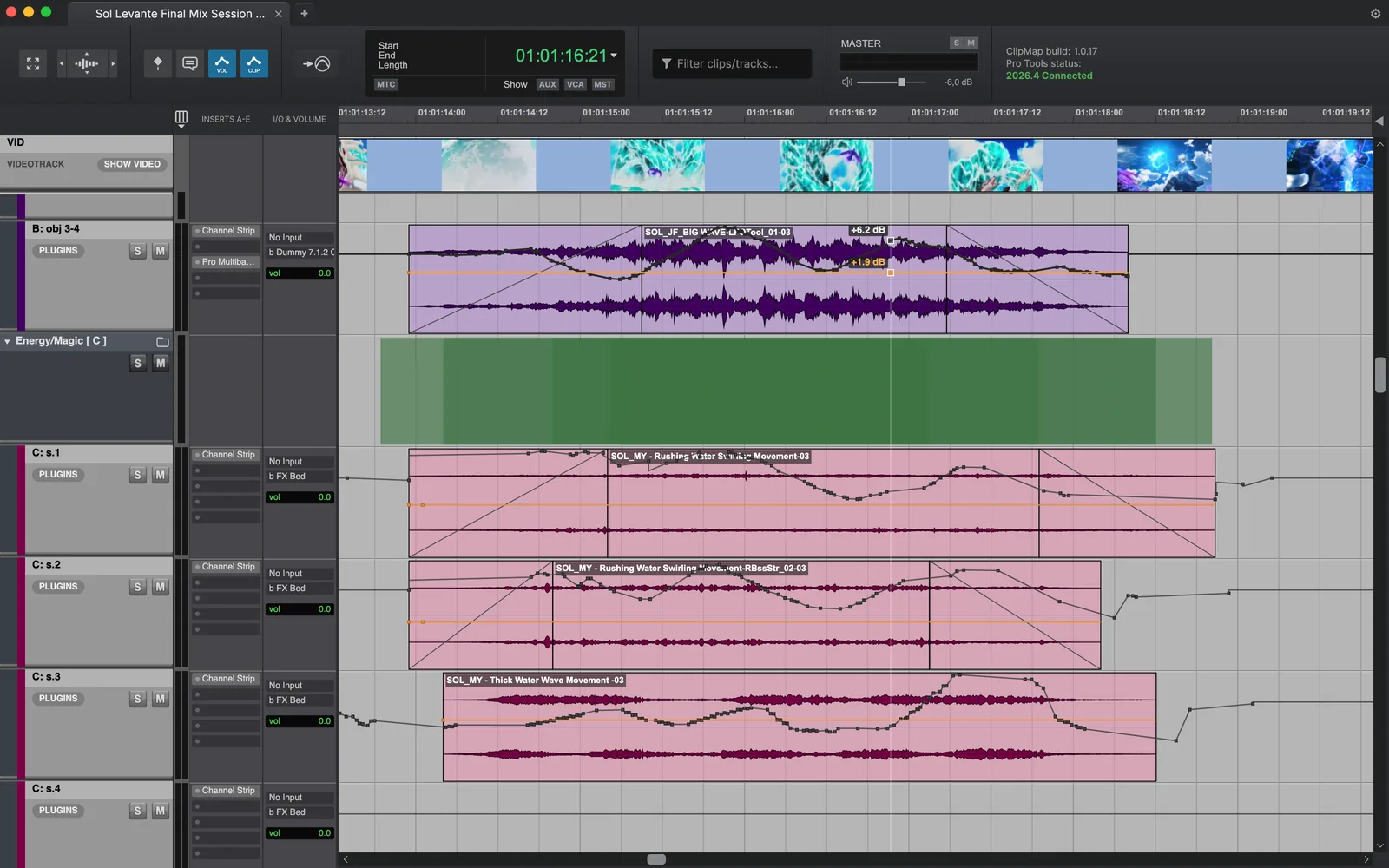
The View menu turns on columns beside the tracks, each remembered per session:
- Show Comments: each track’s Pro Tools comment. Hover to read a long one.
- Show Inserts A-E and Show Inserts F-J: each track’s plug-ins. Hover a slot for its name and state. Bypassed inserts are blue; inactive or missing ones are dimmed.
- Show I/O & Volume: each track’s input, output and fader level.
Waveforms
Waveforms are drawn from the audio files and saved so they load quickly. If a waveform looks wrong or the audio changed, choose File > Regenerate Waveforms.
Automation and clip gain lines Pro
Playback follows the session’s volume automation and clip gain. To see them as lines, use the “Show/hide volume automation” and “Show/hide the clip gain line” buttons in the header. To listen without them, turn on Bypass volume automation or Bypass clip gain in Settings.
Transcription Pro
For sessions where Pro Tools has made a transcript, View > Show Transcription shows the words on the timeline.
Memory locations
Press M, or choose Windows > Memory Locations…, to list the session’s memory locations in timeline order. Type in the filter box to find one by name, track or comment, and click one to jump to it. Press M or Escape to close the list.
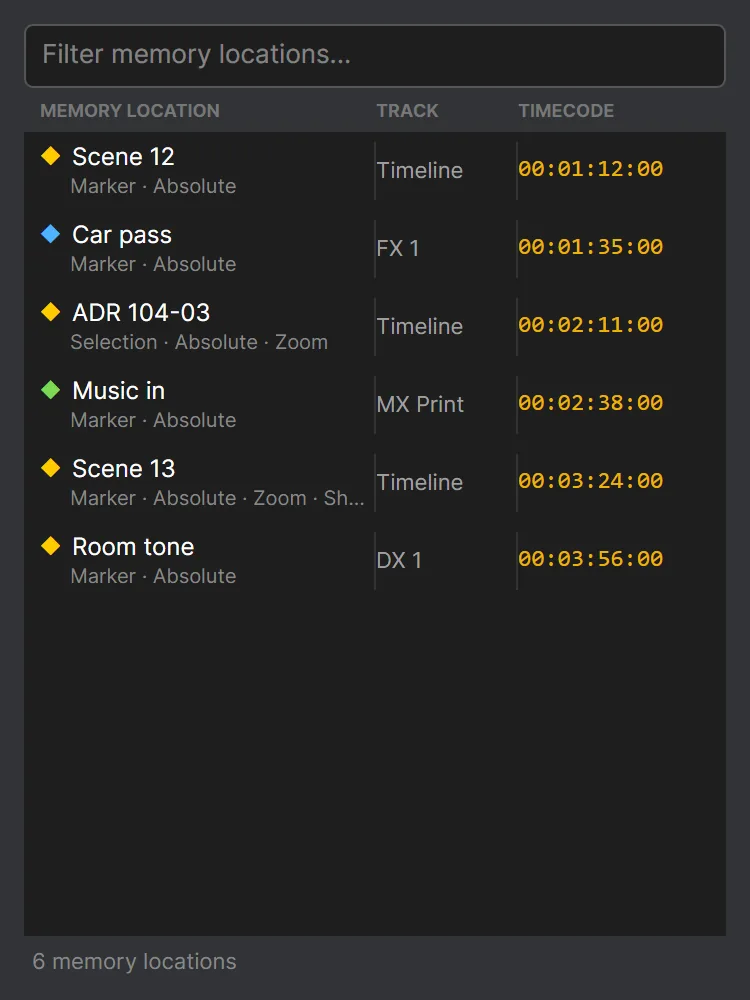
View > Show Memory Locations on Tracks Pro adds a lane to each track that has memory locations of its own.
Clips
Selecting clips
- Click a clip to select it, and Shift + click to add more.
- Drag with the right mouse button to draw a box around clips. Hold
Shiftto add to the selection, orAlt(Optionon a Mac) to remove from it. - Double-click a clip to show it in the Clip Inspector.
- Dragging a clip that is already selected drags it out of ClipMap, for example into Pro Tools.
The header shows the selection’s start, end and length.
Selecting part of a clip
Select the clip, then hold Shift and drag across it. Drag the edges to adjust, and press Escape to clear it. While part of a clip is marked, Space plays only that part and Spot to Pro Tools sends only that part.
Moving between clips
With one clip selected, Tab goes to the next clip on the track and Shift+Tab to the previous one.
Clip Inspector
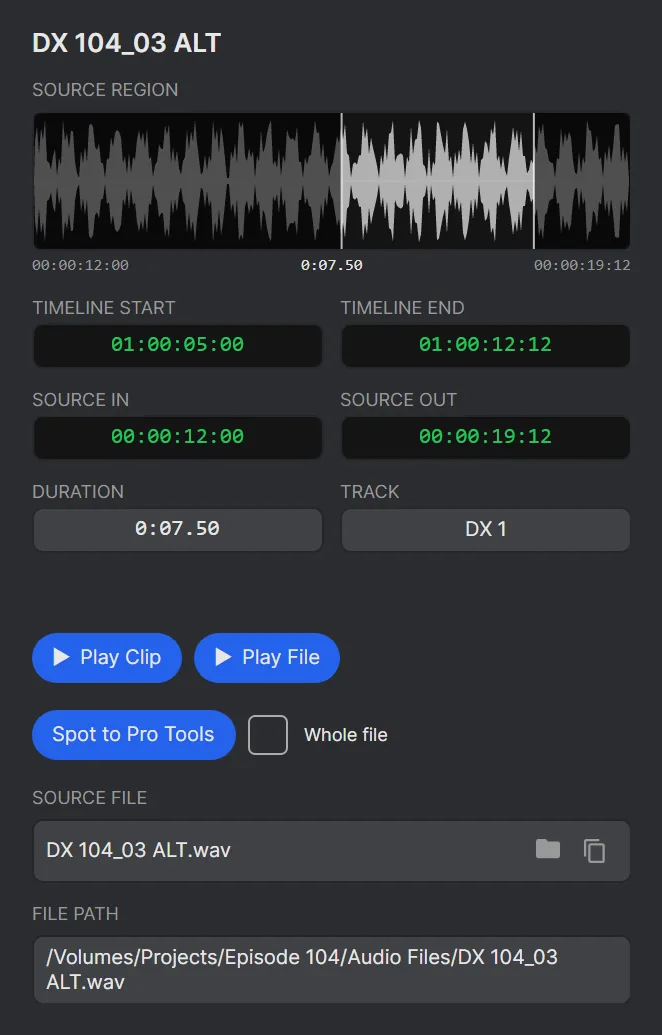
The side panel on the right has three tabs: Clip Inspector, Clip Bin and Settings. The Clip Inspector shows the selected clip’s source file and its waveform, where the clip sits on the timeline and in the file, its length, track and file path.
- Play Clip plays the clip with its fades.
- Play File plays the whole audio file.
- Spot to Pro Tools Pro sends the clip to Pro Tools. Tick Whole file to send the entire file instead.
The folder button shows the file in Explorer or the Finder, and the copy button copies the file name.
Clip Bin
The Clip Bin tab lists the session’s audio clips in alphabetical order.
- Type in Filter clips… to narrow the list.
- Press and hold a clip to hear it.
- Click a clip to select it on the timeline, or right-click to scroll the timeline to it.
Filtering the timeline
Type in Filter clips/tracks… in the header to show only the tracks with matching clips or names. Click the x to clear it.
Listening and video
Playback
Press Space to play and again to stop. What plays depends on the selection:
- One clip: that clip, with its fades and its track’s automation, even if the track is muted.
- Several clips: all tracks, from the first selected clip to the end of the last.
- Nothing: all tracks, from where the mouse pointer is on the timeline.
Playback follows the session’s volume and pan automation, clip gain, and track mute and solo.
Audio output
Choose where ClipMap plays in Settings > Audio > Output device. The change applies at once.
MIDI output Pro
ClipMap can play the session’s MIDI clips on an external MIDI device, in time with the audio.
- In Settings, open the MIDI page.
- Choose the device under Output device.
- Click the play button beside it to send a test note.
Video player Pro
Open the video player with Windows > Video Player, the SHOW VIDEO button on the video track, or the V key. It plays the session’s video in sync as you play, scrub and move around the timeline. Video clips also show picture frames on the timeline.
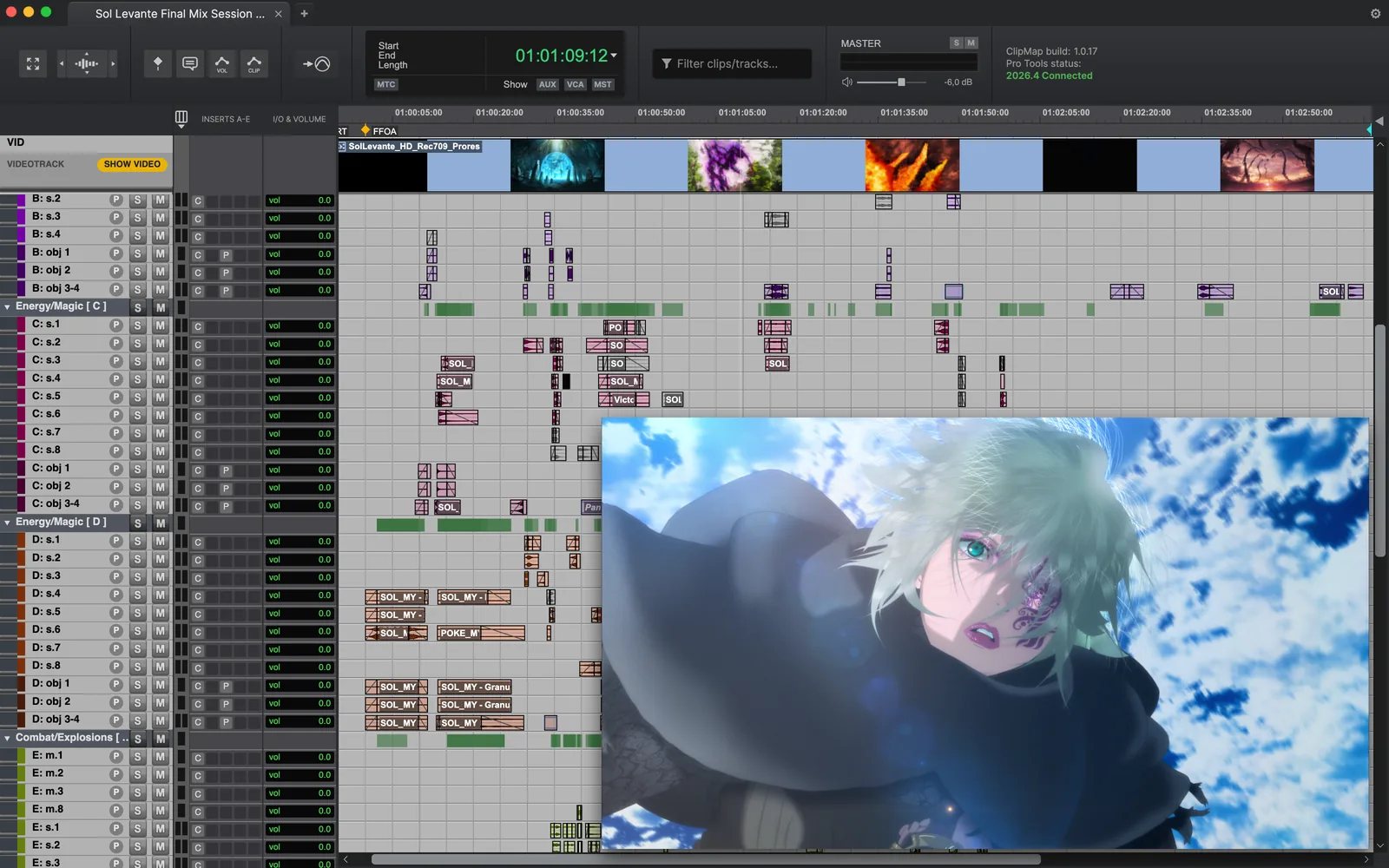
If the session has several video tracks, click the small triangle on the video track’s header to choose which one the player follows.
Getting clips into Pro Tools
Drag clips into Pro Tools
Select one or more clips, then drag them from the timeline into Pro Tools. Dragging one clip works with every license; dragging several at once Pro needs ClipMap Pro.
A single clip arrives as a file named after the clip. Settings > Pro Tools > Drag and drop import chooses whether Pro Tools copies the audio (the default), adds it in place, or converts it.
On a Mac
When you let go over Pro Tools, ClipMap places the clips itself, from their original audio with handles:
- over a track: on that track
- below the last track, or with
Shiftheld: on new tracks - on the Track List: on new tracks at the start of the session
Hold Cmd while dragging to switch between copying and adding the audio for that drop.
If a drop can’t be placed (over the Clip List, a MIDI or Aux track, tracks the clips don’t fit, or with Pro Tools in Spot mode), ClipMap tells you before you let go and nothing is placed.
With Pro Tools older than 2024.6, or in Grid mode on Pro Tools older than 2025.6, Pro Tools takes the drop itself. With Pro Tools older than 2025.6, placing clips can leave empty tracks named CM_tmp. They hold nothing and you can delete them.
Mac Accessibility permission
Placing clips needs the macOS Accessibility permission (on macOS 27 it is called Device Control and Data Access). ClipMap asks for it with a Turn on accessibility popup. Click Turn On Accessibility, switch ClipMap on in System Settings, and drag again. No restart is needed.
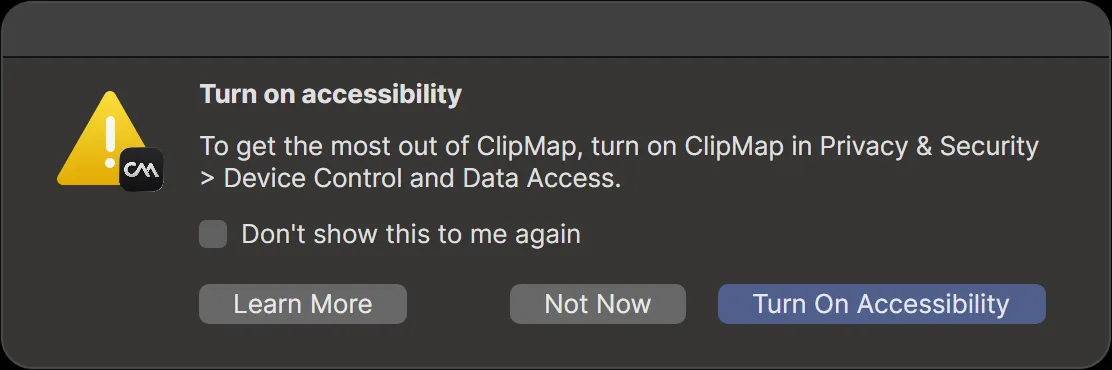
If you said no, turn it on later in Settings, on the Pro Tools page, under Drag and Drop Accessibility.
On Windows
When the drag starts, ClipMap minimizes its window and brings Pro Tools to the front so you can drop the clips on the Pro Tools timeline. No permission is needed.
Placeholder files
When Pro Tools takes a drop of several clips itself (always on Windows), ClipMap first hands it temporary files named CM_placeholder_..., then puts the real clips in place from their original audio. The placeholder files aren’t used by the session. To remove them in Pro Tools, open the Clip List menu, choose Select > Unused, then Clear.
Drag clips to the Finder (Mac)
Hold Option as you start dragging, and the clips go to a Finder window or the desktop as WAV files, one per clip, named as on the timeline, at the session’s sample rate and bit depth. Fades, clip gain and automation are not applied. Several clips at once Pro need ClipMap Pro. MIDI clips can’t be dragged to the Finder.
Spot to Pro Tools Pro
Spotting sends clips into the Pro Tools session open on the same computer. It needs Pro Tools 2023.9 or later; 2025.6 or later is recommended. The header shows Pro Tools status: Connected when ClipMap can reach Pro Tools.
Select clips and press S (or choose Session > Spot to Pro Tools). The Spot to Pro Tools window opens; check the settings and click Spot.
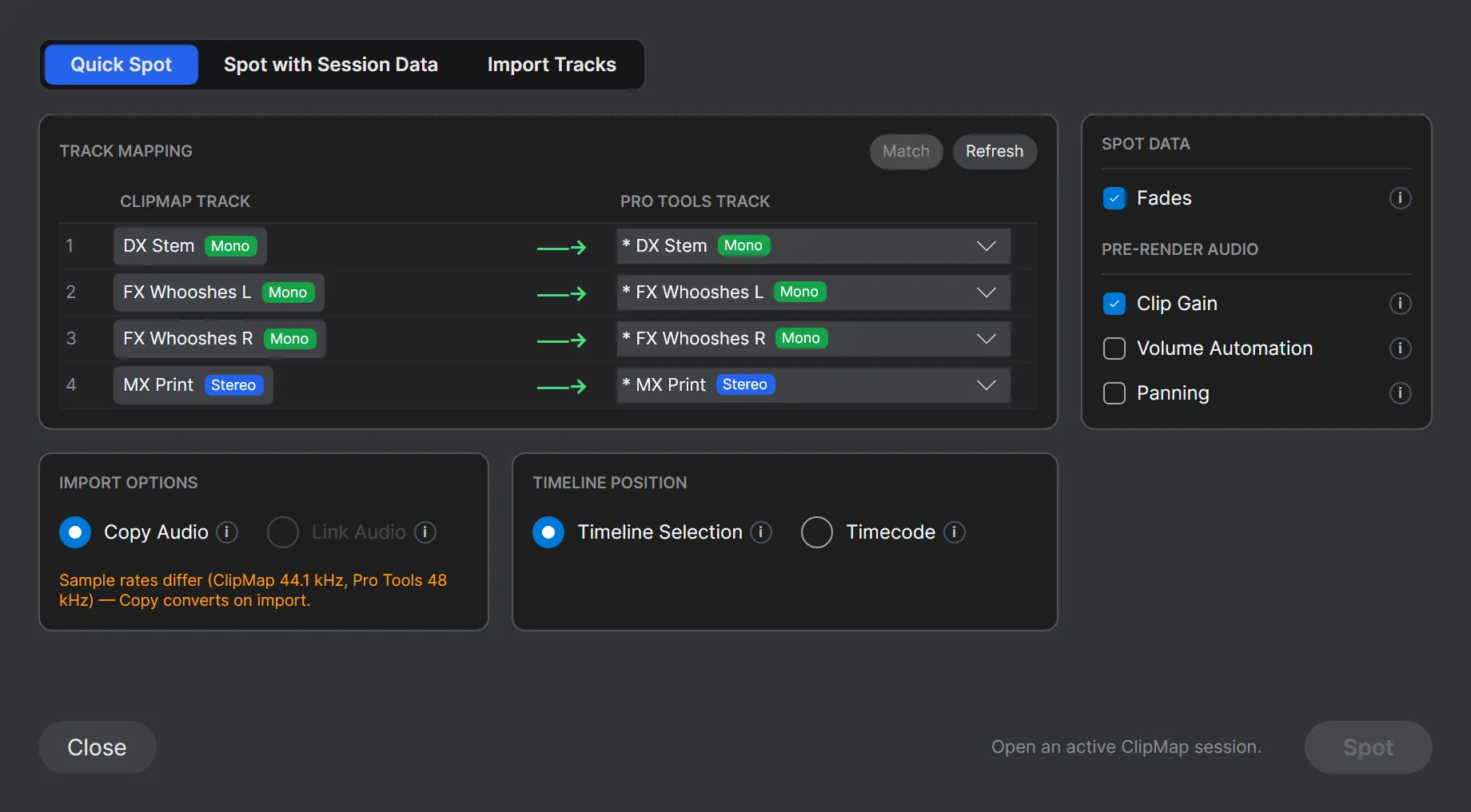
- Timeline Selection (the default) puts the clips at the start of the edit selection in Pro Tools.
- Timecode puts them at the timecode you enter. It starts filled in with the clips’ position in ClipMap, so leave it to put clips back where they were.
- With several clips, TRACK MAPPING sends each ClipMap track to a Pro Tools track, or to + New Track. Match pairs tracks by name.
- CLIP ARRANGEMENT keeps the original spacing, or places clips back to back with a gap.
- Fades are recreated in Pro Tools. Copy Audio copies the audio into the session; Link Audio links to the original files.
- PRE-RENDER AUDIO prints clip gain, volume automation or panning into the audio before it is spotted.
Session > Spot to Timecode… opens the window with Timecode chosen. Shift+S opens Advanced Spot, which can also bring session data with the clips.
When you select part of a clip, only that part is sent, with handles of a few seconds on each side. Split stereo and surround files are sent as one clip, and the Pro Tools track must have the same channel format.
Spot an entire track Pro
Click a track’s name, then click Spot Track in its header. The track arrives in Pro Tools as a new track, with the session data you tick: audio clips, clip gain, plug-ins, and volume, pan and plug-in automation.
Settings
Open Settings with the gear at the right end of the tab bar, with File > Settings…, or with ClipMap > Preferences… (Cmd+,) on a Mac. Changes apply at once.
| Page | Setting | Default |
|---|---|---|
| Audio | Output device: where ClipMap plays | |
| Tracks & Clips | Show AUX, VCA and MASTER tracks | Off |
| Tracks & Clips | Show inactive tracks, Show hidden tracks | Off |
| Tracks & Clips | Show only tracks with active clips | On |
| Tracks & Clips | Show clip groups: a box around each clip group | On |
| Tracks & Clips | Clip groups are selectable: a click selects the whole group | Off |
| Tracks & Clips | Default clip coloring: From session, Tracks and MIDI Channels, or Track Color | From session |
| Playback | Bypass volume automation, Bypass clip gain | Off |
| MIDI Pro | Output device for the session’s MIDI | None |
| Video Sync Pro | Send MTC / MMC, with an output port for each | Off |
| Pro Tools | Spot import default: copy, add or convert spotted audio | Copy |
| Pro Tools | Drag and drop import: the same for dragged clips | Copy |
| Pro Tools (Mac) | Drag and Drop Accessibility: the permission for placing dragged clips | |
| Navigation | Pro Tools scroll navigation: the mouse wheel works as in Pro Tools | On |
| Side Panel | Always show clip inspector | On |
Keyboard shortcuts
Shortcuts work in the main window while you are not typing in a text box.
| Action | Windows | Mac |
|---|---|---|
| Play or stop | Space | Space |
| Spot to Pro Tools Pro | S | S |
| Advanced Spot Pro | Shift+S | Shift+S |
| Zoom in, zoom out | T, R | T, R |
| Zoom to selection | E | E |
| Universe Mode | U | U |
| Show or hide clip names | N | N |
| Show or hide the time grid | Ctrl+G | Control+G |
| Go to the session start | Enter | Return |
| Next clip, previous clip | Tab, Shift+Tab | Tab, Shift+Tab |
| Clear the selected part of a clip | Escape | Escape |
| Memory Locations window | M | M |
| Video player Pro | V or Ctrl+9 | V or Control+9 |
| Transcript Pro | Windows > Transcript… | Cmd+Shift+T |
| Open a session | File > Open Pro Tools Session (PTX)… | Cmd+O |
| Close the session | File > Close Session | Cmd+W |
| Settings | File > Settings… | Cmd+, |
| Quit | File > Quit ClipMap | Cmd+Q |
With the mouse: scroll moves through the tracks, Shift + scroll along the timeline, Alt + scroll (Option on a Mac) zooms, and a middle-click turns on Universe Mode.
Troubleshooting
ClipMap stops at the license screen
Read the message at the top of the screen and find it in Messages on the license screen.
Pro Tools doesn’t respond to Spot
- Make sure Pro Tools is running on the same computer with a session open. The header in ClipMap should show Pro Tools status: Connected.
- Check the Pro Tools version. Spotting needs Pro Tools 2023.9 or later. With an older version ClipMap says “Pro Tools is not connected” even though Pro Tools is open.
- Follow the message ClipMap shows:
- Could not connect to Pro Tools: start Pro Tools, or restart it.
- No session is open in Pro Tools: open a session in Pro Tools.
- No track is selected in Pro Tools: select the destination track in Pro Tools, or map tracks in the Spot to Pro Tools window.
- Channel mismatch: pick a Pro Tools track with the same channel format as the clip.
- Source file not found: the audio file moved. Relink it first.
- If spotting worked and then stopped, restart Pro Tools.
Audio or video files not found
The session remembers where its media was on the computer that saved it. Use Locate audio in folder and Locate video in folder in the Relink Media window. See Relink missing media.
Waveforms not showing
- Open File > Relink Files… and check that no audio is listed as Missing.
- Choose File > Regenerate Waveforms.
Video not playing
- If the player stays on No Video, check that the video file is found: open File > Relink Files…, go to the VIDEO tab and use Locate video in folder.
- With several video tracks, choose the right one with the triangle on the video track’s header.
- The picture pauses where the timeline has no video clip. That is expected.
- If the video player doesn’t open at all, reinstall ClipMap.
”Your system clock looks incorrect”
ClipMap stops when the computer’s clock is more than a few minutes off. Set the date, time and time zone automatically (Windows: Settings > Time & language > Date & time. Mac: System Settings > General > Date & Time), then restart ClipMap.
Network problems
If ClipMap says it can’t reach the license server or couldn’t check your license:
- Check your internet connection. ClipMap needs one every time it starts.
- If a firewall, proxy or network allow-list is in use, allow
api.sparks.audioandsparks.audio. - Click Try again.
- If the internet works and the check keeps failing, install the latest version from sparks.audio/download over the current one.
”Missing FFmpeg libraries” when ClipMap starts
Part of ClipMap is missing or could not load. Download ClipMap again and reinstall it. If the message stays, contact support and tell us what the message says.
Where ClipMap keeps its files
ClipMap never writes into your session or media folders. Its own files are here:
- Windows: settings, recent sessions and workspaces in
%APPDATA%\ClipMap, and the cache in%LOCALAPPDATA%\ClipMap. Paste either into the File Explorer address bar. - Mac: everything in
~/Library/Application Support/ClipMap. In the Finder, choose Go > Go to Folder… and paste it.
Clearing the cache
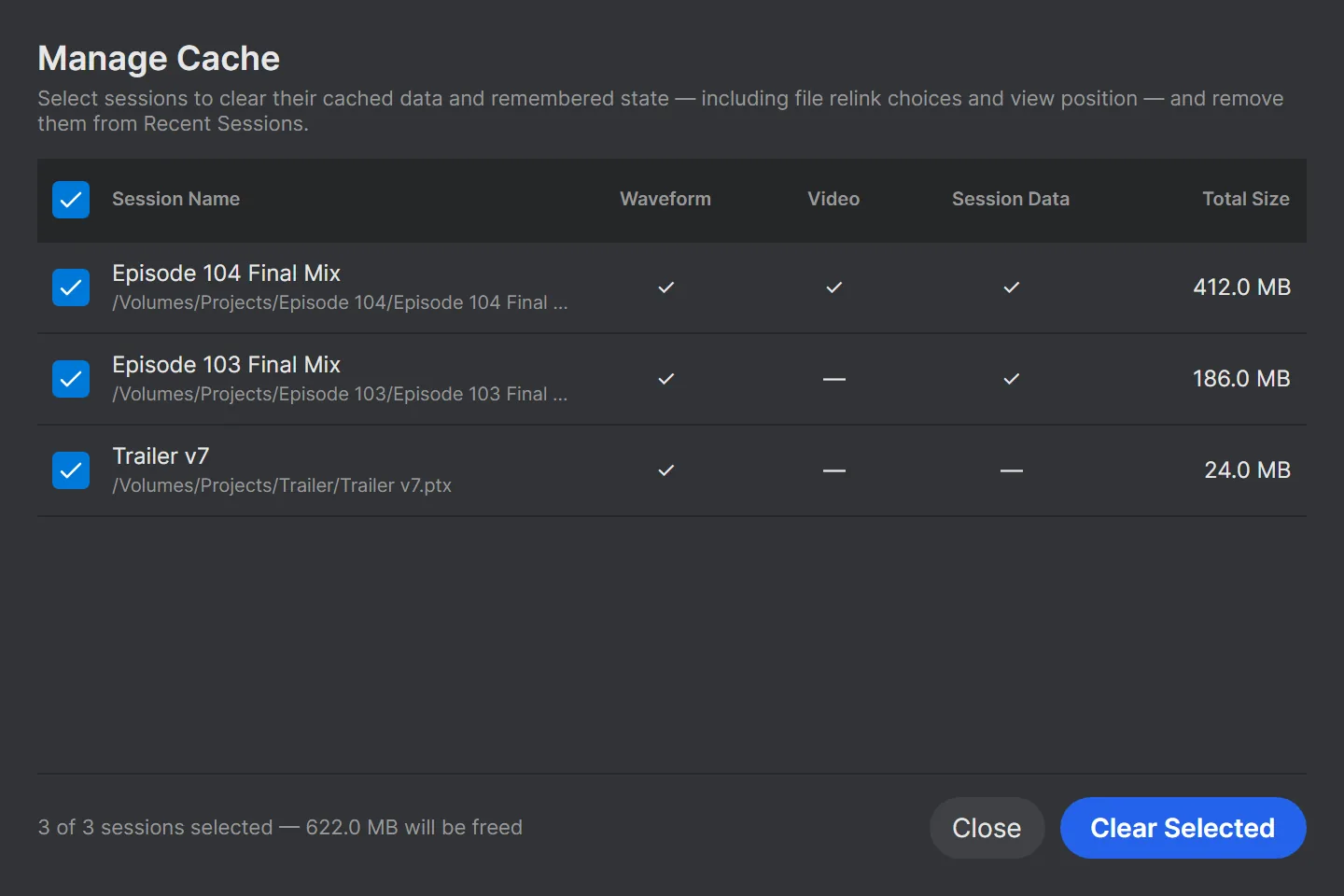
File > Manage Cache… lists your recent sessions and what ClipMap has stored for each: waveforms, video thumbnails and session data. Clear Selected frees the space for the ticked sessions (all of them are ticked when the window opens) and removes them from Recent Sessions. It also forgets where you relinked their media. ClipMap rebuilds the cache the next time you open a session. Your sessions, media, settings, license and workspaces are never touched.
Updates
ClipMap checks for updates when it starts and downloads them in the background. When one is ready, click Update Available in the main window or the File menu to install it now; otherwise it installs the next time ClipMap starts.
Get help
In ClipMap, Help > ClipMap Documentation opens this page (in earlier versions the item is called Open Quick Start Guide).
Send a bug report
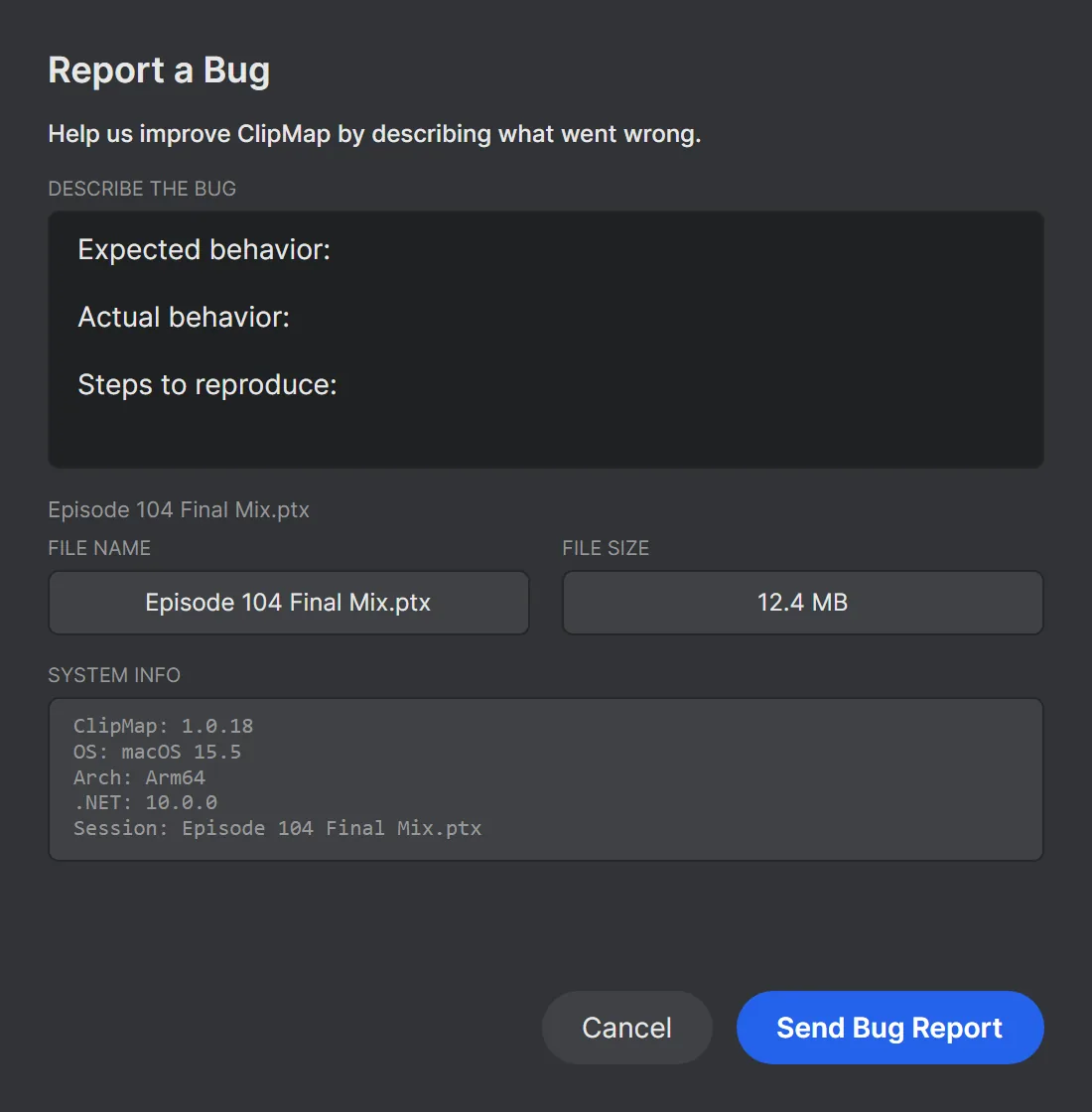
In ClipMap, choose Help > Send Bug Report…, describe what happened and click Send Bug Report. ClipMap attaches the open session file (remove it from the list to send a report without it) and your ClipMap version and system.
Everything else sits in two sections under the description, Attachments and Details, and nothing is sent unless you add it:
- Files: drop pictures, video, audio, session files or text on the window, or open Attachments and click Add files…. A report can carry up to 20 files and 1 GB in all, 500 MB per file.
- Screenshot: a picture of ClipMap’s own window, taken when the report window opens. Retake it after arranging the view.
- Audio…: the source files of selected clips; a render of selection (up to two minutes of what ClipMap plays, so we hear exactly what you hear); or the last spot renders, what ClipMap last sent to Pro Tools.
- Category (under Details): an optional pick that helps us sort the report.
- Include diagnostics (under Details), on by default: the Pro Tools version, the open session’s facts, your display and audio device, a few settings, and ClipMap’s recent log lines. The log can name files on your computer; untick the box to leave the diagnostics out.
Files are stored privately and used only to look into your report. You get an email with the ticket number, and replying to it adds to the same ticket.
Contact us
- Support, sales and Enterprise: the support form
- Your licenses and computers: account.sparks.audio